
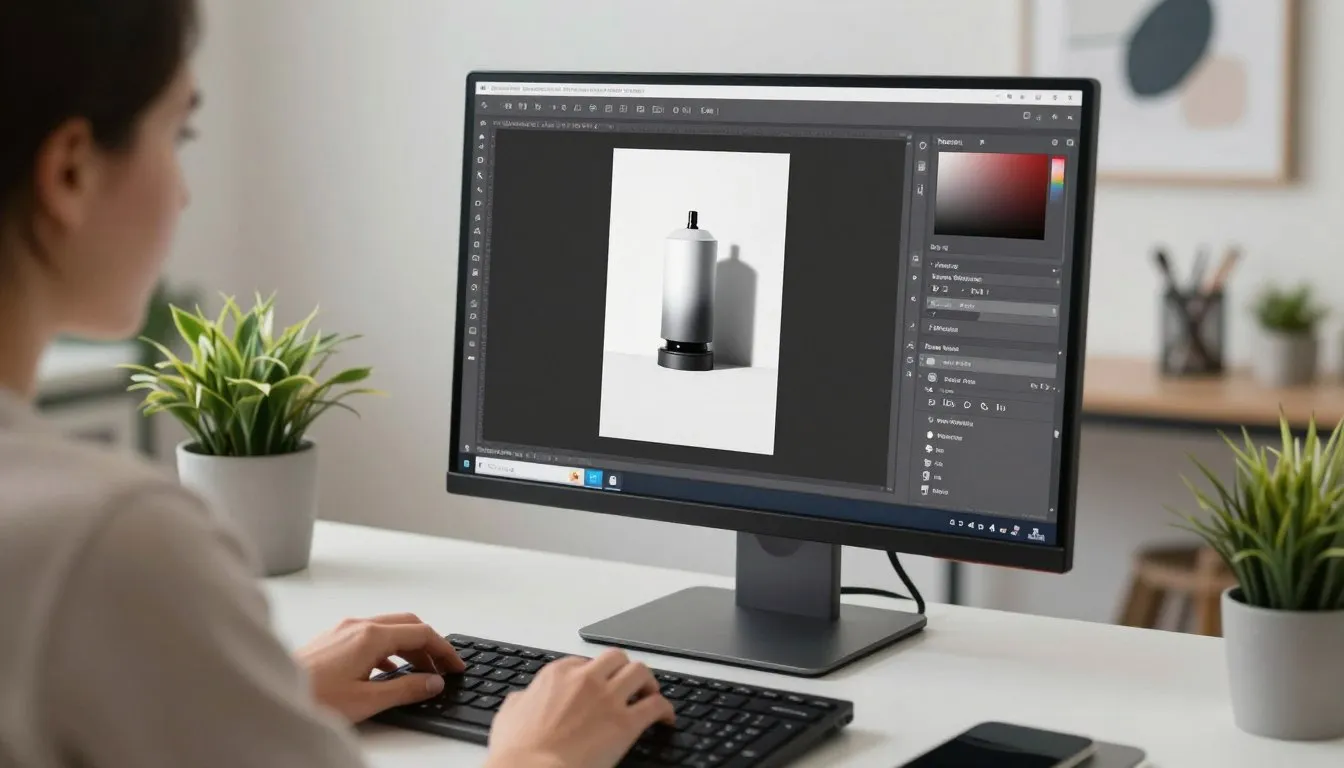
To remove a person in Photoshop, use the AI Remove Tool: select it from the toolbar (grouped with the Spot Healing Brush), paint over the person, and release. Photoshop’s AI fills the area automatically. For complex backgrounds, combine with Content-Aware Fill (Edit → Content-Aware Fill) or Generative Fill for the most seamless results.
Whether you’re cleaning up a crowded tourist photo, removing a stranger from the background of a portrait, or rebuilding a product image, knowing how to remove people in Photoshop is one of the most practical skills in a designer’s toolkit. Adobe Photoshop offers multiple methods from an AI-powered one-click Remove Tool to manual techniques that give you pixel-level control.
In this guide, we cover every approach in detail, explain when to use each one, and share pro-level tips to help you get clean, realistic results every time, whether you’re a complete beginner or a working professional.
Photoshop Version Note: The AI Remove Tool requires Photoshop 24.5 (May 2023) or later. Generative Fill requires Photoshop 25.0 (June 2023) or later with an active Creative Cloud subscription. All other methods work in any modern Photoshop version.
Which Method Should You Use?
Before diving into the step-by-step tutorials, choosing the right approach is critical. The best method depends on three factors: the complexity of the background, the size and position of the person, and how much time you have.
AI Remove Tool
Best for people who are well-separated from the main subject, against simple or moderately textured backgrounds. One-click, beginner-friendly.
Content-Aware Fill
Works well on large objects including people on uniform backgrounds (grass, sky, sand, walls). Gives you control over the sampling area.
Generative Fill
Best for complex scenes or when you want the AI to synthesize entirely new background content. Requires CC subscription.
Clone Stamp Tool
Ideal for professional retouching, busy backgrounds, or when automatic methods leave visible artifacts. Requires practice but delivers the cleanest results.
Spot Healing Brush
Great for removing small or distant people in the background. Fast and effective for simple scenes but less reliable for large subjects.
Method 1: AI Remove Tool (Fastest Way)
The Remove Tool is Photoshop’s most advanced AI-powered eraser, introduced in version 24.5. It uses machine learning to analyze the surrounding pixels and generate realistic replacement content, often with a single brush stroke. This is the best starting point for most people-removal tasks.
Best for: Single people or small groups on moderately clean backgrounds. Also excellent for cleaning up AI-generated content from Generative Fill.
Step-by-Step: Using the AI Remove Tool
-
Open your image and duplicate the layer
Go to File → Open and select your photo. Then press Ctrl+J (Windows) or Cmd+J (Mac) to duplicate the Background layer. This protects your original and is always best practice.
-
Select the Remove Tool from the toolbar
In the left toolbar, click and hold the Spot Healing Brush icon to open the fly-out menu, then select Remove Tool. Alternatively, press J and cycle through the group with Shift+J.
-
Set your brush size
In the Options bar at the top, set the brush size slightly larger than the person you intend to remove. Use the bracket keys [ and ] to resize on the fly.
-
Paint over the entire person
Draw a loop or continuous brush stroke over the entire subject, head to toe. Make sure your strokes overlap slightly to cover all edges. Do not release until you have covered the complete area.
-
Let Photoshop fill the area
Once you release the mouse, Photoshop’s AI engine processes the selection and fills the space with new background content. This typically takes 2–5 seconds depending on your hardware.
-
Refine if needed
If any artifacts remain, run a second pass with the Remove Tool on the problem area, or switch to Content-Aware Fill for more precise control. For hard edges, follow up with the Clone Stamp.
Pro Tip: For crowd scenes, use Find Distraction → People in the Remove Tool’s options bar to automatically detect and select all people in the frame at once.
Method 2: Object Selection Tool + Content-Aware Fill
Content-Aware Fill analyzes the patterns, textures, and colors of adjacent pixels to generate and blend a realistic replacement for the removed area. This method gives you more control than the Remove Tool, especially when you want to specify which part of the image Photoshop should sample from.
Best for: Subjects with clearly defined edges on uniform or semi-uniform backgrounds such as grass, sky, sand, or painted walls.
Step-by-Step: Content-Aware Fill
-
Duplicate the background layer
Press Ctrl+J / Cmd+J before making any edits.
-
Select the Object Selection Tool
Press W or find it in the toolbar. Click Object Finder in the Options bar so Photoshop automatically highlights detectable objects when you hover over them.
-
Click on the person to select them
With Object Finder active, hover over the person. They will be highlighted in blue. Click to confirm the selection. For more precision, draw a box around them by clicking and dragging.
-
Expand the selection slightly
Go to Select → Modify → Expand and enter 5–10 pixels. This ensures the fill has enough surrounding context to work with.
-
Open Content-Aware Fill
Go to Edit → Content-Aware Fill. A workspace opens showing a green overlay indicating which areas Photoshop will sample from.
-
Adjust the sampling area
Use the Sampling Brush Tool to paint over any areas you want Photoshop to exclude from sampling, for example, another person nearby. You can also use the Color Adaptation and Rotation Adaptation settings for better texture matching.
-
Set Output to New Layer and click OK
Outputting to a new layer keeps your edit non-destructive. Photoshop generates the fill and places it on the new layer. Use a layer mask to refine the edges if needed.
Method 3: Generative Fill (AI-Powered)
Generative Fill is Photoshop’s most powerful AI feature. Unlike Content-Aware Fill, which samples existing pixels, Generative Fill uses a large-scale AI model to synthesize entirely new content. It can rebuild complex backgrounds, buildings, nature, patterns, from scratch, producing multiple variations for you to choose from.
Requires: Adobe Photoshop 25.0 (June 2023) or later with an active Creative Cloud subscription. Results may vary for complex, highly textured, or very busy scenes.
Step-by-Step: Generative Fill
-
Select the person using any selection tool
Use the Lasso Tool (L), Object Selection Tool (W), or Quick Selection Tool to draw a selection around the person. Expand by 15–20 pixels (Select → Modify → Expand) to give the AI more context.
-
Open Generative Fill
With your selection active, go to Edit → Generative Fill, or look for the contextual taskbar that appears at the bottom of the canvas when you have an active selection.
-
Leave the prompt blank to erase
For removal, leave the text field empty and click Generate. Photoshop will produce 3 variations of background content to fill the area. You can type a description (e.g., “stone wall” or “grass field”) to guide what the AI generates.
-
Choose the best variation
Use the arrows in the Properties panel to cycle through the three generated options. Select the one that looks most natural and seamless.
-
Regenerate or refine
If none of the variations are satisfactory, click Generate again for three more options. For stubborn areas, work in smaller, overlapping selections to improve consistency.
Pro Tip: When removing people from complex scenes, make multiple small, overlapping selections with Generative Fill rather than one large selection. This improves accuracy and reduces visible artifacts at boundaries.
Method 4: Clone Stamp Tool (Maximum Control)
The Clone Stamp Tool is the classic, manual approach. It lets you copy pixels from one area of the image and paint them over another. It requires more skill and patience than automatic methods, but it gives you complete, pixel-level control, making it the preferred choice for professional retouchers working with complex or highly textured backgrounds.
Best for: Complex backgrounds with repeating patterns (brick walls, foliage, crowd scenes), difficult edges where automatic methods produce visible seams, and when combined with other tools for final touch-ups.
Step-by-Step: Clone Stamp Tool
-
Duplicate the layer and zoom in
Press Ctrl+J / Cmd+J, then zoom in to at least 100% (Ctrl+1 / Cmd+1) for accurate work.
-
Select the Clone Stamp Tool
Press S on your keyboard or click the rubber stamp icon in the left toolbar.
-
Set up the brush
In the Options bar, choose a soft round brush with hardness around 20–40%. Set Opacity to 100% for full-coverage cloning, or lower it (50–70%) for blending transitions.
-
Define a source area
Hold Alt (Windows) or Option (Mac) and click on a clean area of the background that matches the texture you want to use to cover the person. This sets your clone source.
-
Paint over the person
Release Alt/Option and paint over the person. The brush copies pixels from your source area onto the target. Work in small strokes and frequently re-sample (Alt+click) from nearby areas to avoid repeating patterns.
-
Blend edges with a Healing Brush
Once the person is covered, switch to the Healing Brush Tool (J) to blend any visible seams along the borders of your cloned area.
Pro Tip: Use Clone Stamp for edges and Content-Aware Fill for the center of large removals. This combination, manual precision at the borders and AI fill in the middle, consistently produces the most professional results.
Method 5: Spot Healing Brush (Quick Background Clean-Up)
The Spot Healing Brush is the fastest method for removing small or distant people in the background. It’s particularly effective for people who are out of focus, far from the camera, or partially obscured. Simply paint over them, and Photoshop automatically blends surrounding pixels to cover the area.
Best for: Small background distractions, pedestrians, distant figures in travel photos, or partially visible strangers at the edge of a portrait.
-
Add a new blank layer above your image
Click Layer → New → Layer. In the Options bar for the Spot Healing Brush, check “Sample All Layers” to work non-destructively.
-
Select the Spot Healing Brush (J)
Make sure Content-Aware is selected in the Type dropdown in the Options bar for the best results.
-
Resize the brush to cover the subject
Use [ and ] to size the brush. Make it slightly larger than the person you’re removing for a single confident stroke.
-
Paint over the person
Click and drag the brush completely over the subject. Photoshop will analyze the surrounding area and blend pixels to cover it. For larger subjects, work in overlapping passes from top to bottom.
Method Comparison Table
| Method | Speed | Difficulty | Best Background | Subject Size |
|---|---|---|---|---|
| AI Remove Tool | Fastest | Beginner | Simple – Moderate | Any |
| Content-Aware Fill | Medium | Beginner+ | Uniform textures | Medium – Large |
| Generative Fill | Medium | Beginner | Complex scenes | Any |
| Clone Stamp | Slowest | Advanced | Any background | Any |
| Spot Healing Brush | Fast | Beginner | Simple | Small only |
Pro Tips for Perfect People-Removal Results
Getting clean, realistic results, especially in complex images, requires more than just the right tool. Here are the professional techniques that separate average edits from flawless ones:
Always work non-destructively
Duplicate your background layer before any edit. For automatic tools like the Remove Tool, enable the “Remove on New Layer” option. This way, every change is reversible and you can compare before/after at any time.
Expand your selections before filling
When using Content-Aware Fill or Generative Fill, expand your selection by 15–20 pixels (Select → Modify → Expand) before applying the fill. This gives the AI engine more surrounding context, resulting in smoother, more seamless blending.
Add realistic shadows after removal
When a person is removed from a scene, the shadow they cast is often still partially visible. Create a new layer, set it to Multiply blend mode, and paint a subtle, soft shadow with a very low opacity black brush to restore visual realism.
Work in smaller selections on complex scenes
For Generative Fill in particular, large single selections often produce inconsistent or repetitive textures. Instead, break the removal area into smaller, overlapping sections and fill each one independently. The results are significantly cleaner.
Combine tools for the best results
No single tool is perfect for every situation. Professional retouchers typically use the Remove Tool or Generative Fill for the bulk of the removal, then clean up specific problem areas, edges, shadows, repeating textures, with the Clone Stamp and Healing Brush. Mixing methods is always the most effective strategy.
Save in PSD or TIFF format
Always save your working file as a .PSD or .TIFF to preserve layers and full quality. Export as JPEG or PNG only for your final, flattened delivery file.
Frequently Asked Questions
-
What is the easiest way to remove a person in Photoshop?
The easiest method is the AI-powered Remove Tool (available from Photoshop 24.5). Select it from the toolbar, paint over the person, and Photoshop automatically fills the area with realistic background content. No selection or manual fill step required. It is the fastest one-step solution for most scenarios.
-
How does Content-Aware Fill work for removing people?
Content-Aware Fill analyzes the surrounding pixels, their patterns, textures, and colors, and generates a statistically plausible reconstruction to replace the removed area. In the Content-Aware Fill workspace, you can fine-tune which parts of the image Photoshop samples from, giving you significant control over the output quality.
-
Can I remove people from complex or crowded backgrounds?
Yes, though it requires more technique. Combine multiple tools: use Generative Fill for complex areas, then refine edges with the Clone Stamp. For crowd scenes, the Remove Tool’s Find Distraction → People feature can automatically detect and select all people at once. Work in smaller, overlapping sections rather than attempting one large removal.
-
What is Generative Fill and when should I use it?
Generative Fill (Photoshop 25.0+) uses an AI model to generate entirely new content, not just sample existing pixels, to fill a selection. Use it when standard Content-Aware Fill produces unnatural results, when the background is complex (architecture, detailed foliage, mixed textures), or when you want to replace a person with something specific (e.g., a wall, a chair) by entering a text prompt.
-
Which Photoshop version introduced the AI Remove Tool?
The AI Remove Tool was introduced in Photoshop 24.5 (May 2023 update). It has been significantly improved in subsequent updates, including Photoshop 25.x (2024) and the 2025/2026 releases, with better edge detection and faster processing via Adobe’s Firefly AI engine.
-
Does removing people in Photoshop work on all image types?
The tools work on all standard image formats (JPEG, PNG, RAW, TIFF, PSD). However, results are consistently better on higher-resolution images with relatively clean backgrounds. Very low-resolution images or heavily compressed JPEGs may produce less seamless results because there is less pixel information for the AI to work with.
-
Is there a free alternative to Photoshop for removing people from photos?
Yes. Free and low-cost alternatives include GIMP (free, open-source, includes a Heal Selection plugin), Canva (limited AI eraser on free plan), and various AI-powered web tools. However, for professional-quality results, especially on complex backgrounds, Adobe Photoshop remains the industry standard.
Conclusion
Knowing how to remove people in Photoshop is an essential skill for photographers, designers, and content creators. For most scenarios, the AI Remove Tool is the fastest and most beginner-friendly starting point. For complex scenes, combine it with Content-Aware Fill, Generative Fill, and the Clone Stamp Tool for professional, seamless results.
The key takeaway: always work non-destructively on duplicate layers, choose the right method for your background complexity, and never rely on a single tool alone. The best results always come from combining techniques.
Ready to practice? Open a photo in Photoshop, duplicate your Background layer, and give the Remove Tool a try. You’ll be surprised how much you can accomplish in under two minutes.
The DesignersLab editorial team consists of professional designers, retouchers, and digital artists with years of hands-on experience in Adobe Creative Cloud. We create practical, up-to-date tutorials to help designers at every level work faster, smarter, and more creatively.